Fire Logic Inspector
Fire PRA Logic
The mapping from Raceways to Cables to Components to Basic Events can be seen here.
This information would have to be imported from a Fire Logic Database. The database and its format is described in the section Databases.
PRA/PSA Logic — Raceways, their Cables, affected Components and Basic Events
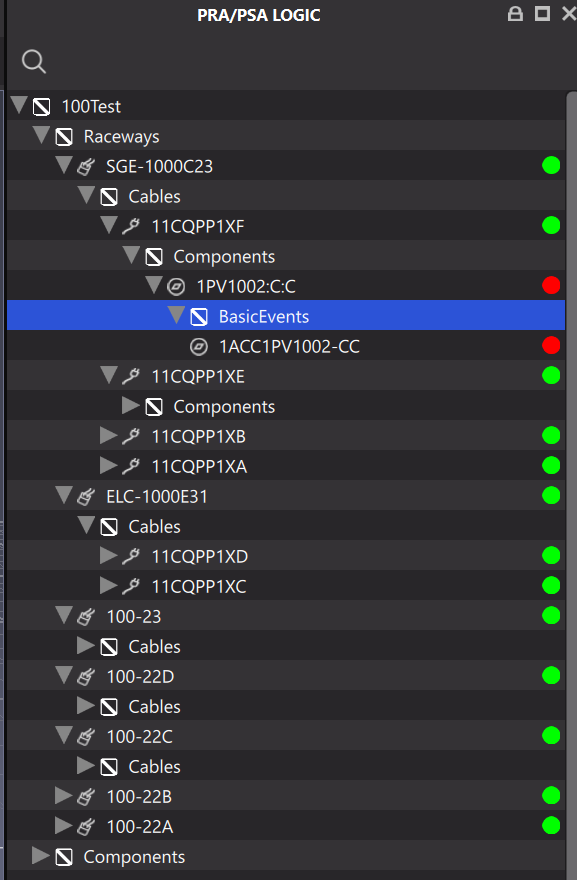
Each raceway expands into the cables it carries; each cable expands into the components it feeds and the basic events mapped to those components. The colored indicator on each row reflects the current scenario's simulation results: red marks items failed by the fire, green marks items unaffected. In the example above, cable 11CQPP1XF in raceway SGE-1000C23 fails component 1PV1002:C:C, which fails basic event 1ACC1PV1002-CC. The search field at the top filters the tree by name.
Linking and unlinking
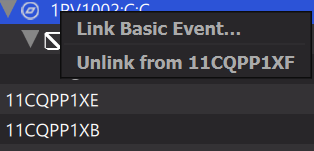
You can change the mapping directly in the Logic Inspector. Right-click a row to see what it can be linked to:
| Right-click on | Menu entries |
|---|---|
| Zone (the top row) | Link Raceway…, Link Cable…, Link Component…, Clear Basic Event Links (All Zones)… |
| Raceway | Link Cable…, Link Component…, Link Basic Event…, Unlink from parent |
| Cable | Link Component…, Link Basic Event…, Unlink from parent, Select Trays |
| Component | Link Basic Event…, Unlink from parent |
| Basic event | Unlink from parent, Unlink from All (All Zones)…, Link to Components / Cables / Raceways… |
"Link" attaches an item that already exists in the project. Raceways, cables and components are created in the Zone or Scenario Inspector; the Logic Inspector only connects them.
Right-click menu on a component
Picking an item
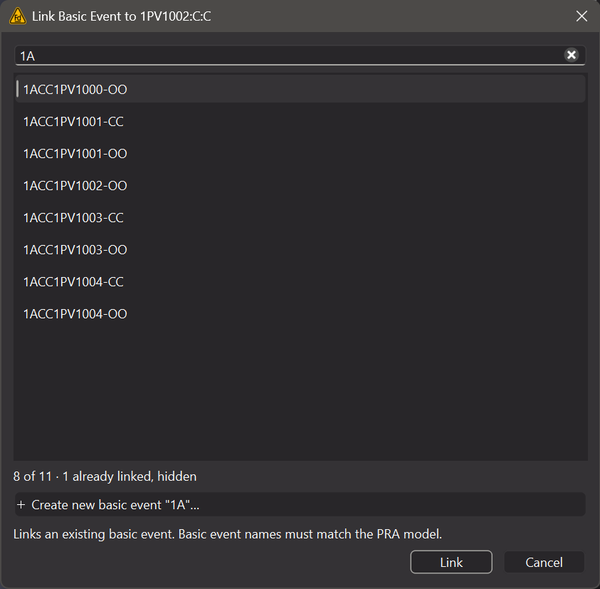
"Link …" opens a list of every item of that type in the project, with the ones already linked hidden. Type to narrow it; names that start with what you type come first, and letter case and surrounding spaces are ignored.
- ↑ / ↓, Page Up / Page Down, Ctrl+Home / Ctrl+End move the highlight while you keep typing.
- Tab completes: it extends what you typed as far as all matching names agree (for example
afw-pbecomesAFW-PMP-). Press Tab again to take the highlighted name. - Enter or a double-click links the highlighted item. Esc cancels.
Large plants are fine: the list is loaded once per project, so later pickers open instantly.
Link Basic Event — the list narrowed to names starting with 1A
Several rows at once
Select several rows (for example five components) and right-click to link one item to all of them. Only the entries that suit every selected row are offered. The list hides an item only if it is already linked to all of them, and linking adds it wherever it is missing. The whole change is made in one step: either every link is added or none is.
Creating a basic event
Basic events can also be created here. In the Link Basic Event list, choose + Create new basic event at the bottom (or press Ctrl+N), then enter:
- Name — it must match a basic event in your PRA model, or it will not affect results. A name that already exists (ignoring letter case and surrounding spaces) is refused; pick that one from the list instead.
- Description (optional).
- Type — Standard or Spurious. A spurious basic event needs its spurious probability, a value from 0 to 1.
The new basic event is linked to every selected row.
Linking a basic event to many items
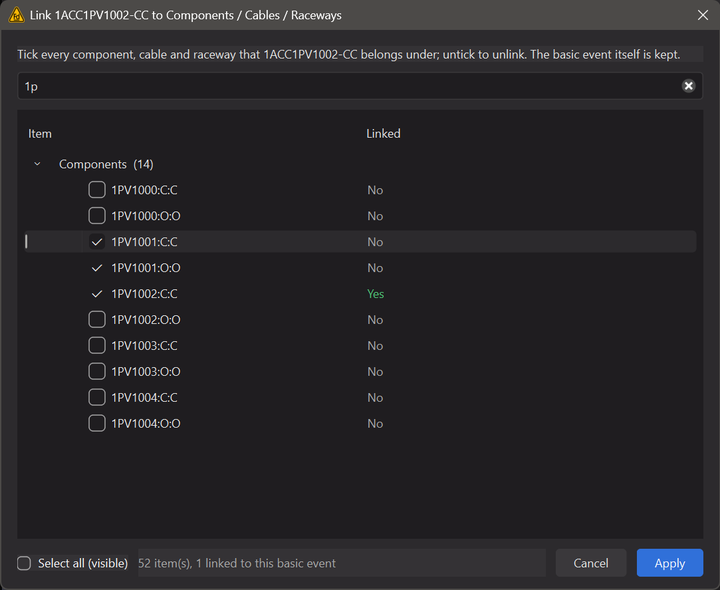
On a basic event, Link to Components / Cables / Raceways… lists every component, cable and raceway in the project, grouped by type, with a search field. The items the basic event is linked to start ticked, and the Linked column shows how each item stood when the dialog opened.
Tick an item to link it and untick it to unlink it, then click Apply. Only what you changed is applied, all in one step. Select all (visible) ticks every item the search currently shows. A zone that carries the basic event is listed too, but can only be unticked.
Link a basic event to components, cables and raceways
Unlinking
Unlink from parent removes only the link to the row the item sits under; the item stays in the project and under any other parents.
If the unlink would take a raceway, cable or component out of every zone, FRI3D warns first and says how many cables, components and basic events would go with it. Items outside every zone cannot be failed by any zone fire. You can:
- Keep under Zone — link the item directly to the current zone, then unlink it.
- Unlink anyway — the item leaves every zone. It remains in the project, and you can link it again later.
- Cancel.
On a basic event, Unlink from All (All Zones)… removes it from every component, cable and raceway in the project. The basic event itself is kept.
Clear Basic Event Links (All Zones)… on the zone row removes every link to a basic event in the whole project, so you can map them again from a clean slate. The basic events are kept, and so are the raceway, cable and component links and your scenario contents.
After changing links
- Link changes are saved with the project (File → Save), like any other edit. If you close FRI3D without saving, you are offered the changes again the next time you open the project.
- Basic-event links are read when the PRA calculation runs, so the next PRA run uses them.
- Changing which raceways, cables or components are linked changes what a fire can fail. Fire failure results that were already computed keep the old links until you run the fire simulation again; FRI3D reminds you of this after such a change.